 Help Center
Floodlight Reset Instructions
Floodlight Camera has a reset button beside the 'SD Card' slot. With the pin that the camera came with, or a paper clip, push the reset button in for about 5 to 10 second, until you hear the floodlight chime. That is an indication that it has been reset.

Please see this video. When pairing the camera during the day, the red light can be a challenge to see sometimes depending on its location and where the sun is shining.
The flashing red light on the camera indicates that the camera has been fully reset and can be added to the smart life app. See Steps below.
1. Light on front of the camera is flashing
2. Opened the Smart Life App
3. Select 'Add Device' in the middle of the screen or you can also select the + sign at the top right corner and then select 'Add Device'
4. Select 'Camera and Lock' on the left column.
5. Select 'Smart Camera (Wi-Fi)' on the right column at the top.
6. When you see the screen 'Reset the Device', Select the Blue 'Next Button' at the bottom and select Next, Next, Next (Total of 4 times)
7. You should then see the screen were is says 'Select 2.4Ghz Network and enter password'
You should see your Wi-Fi network and then enter your password and selected 'Next'.
8. You should then see a QR Code to scan and face your phone toward the Floodlight Camera. If Camera will not scan the QR Code, please see this article:
https://osigodirect.kb.help/camera-will-not-scan-the-qr-code-on-my-phone/
9. When the Camera scans the QRCode correctly you will hear a tone (ding, ding, ding)
If you did, press 'I heard a prompt'
10. On the next screen you will see 'Connecting Device
11. You will then see the Floodlight camera added successfully and can now select 'Done' at the bottom of the Screen.
12. You should now see the camera interface and can now setup the camera's options. Recording, Motion Detection, Activity Area and more.
Once you have connected the Floodlight Camera to the Smart life app, here are instructions to help you set up the camera.
You will want to enable permissions for certain functions to work properly. When you select the movie camera or image Icon, that will take a photo or video of what you are viewing live.
The correct way to view live footage is this method.
- When you are viewing live video select the arrow with the two lines below it.
- At the bottom left, select 'Messages' and you will see the still screen captures, date and time.
- Select where it says 'ALL'
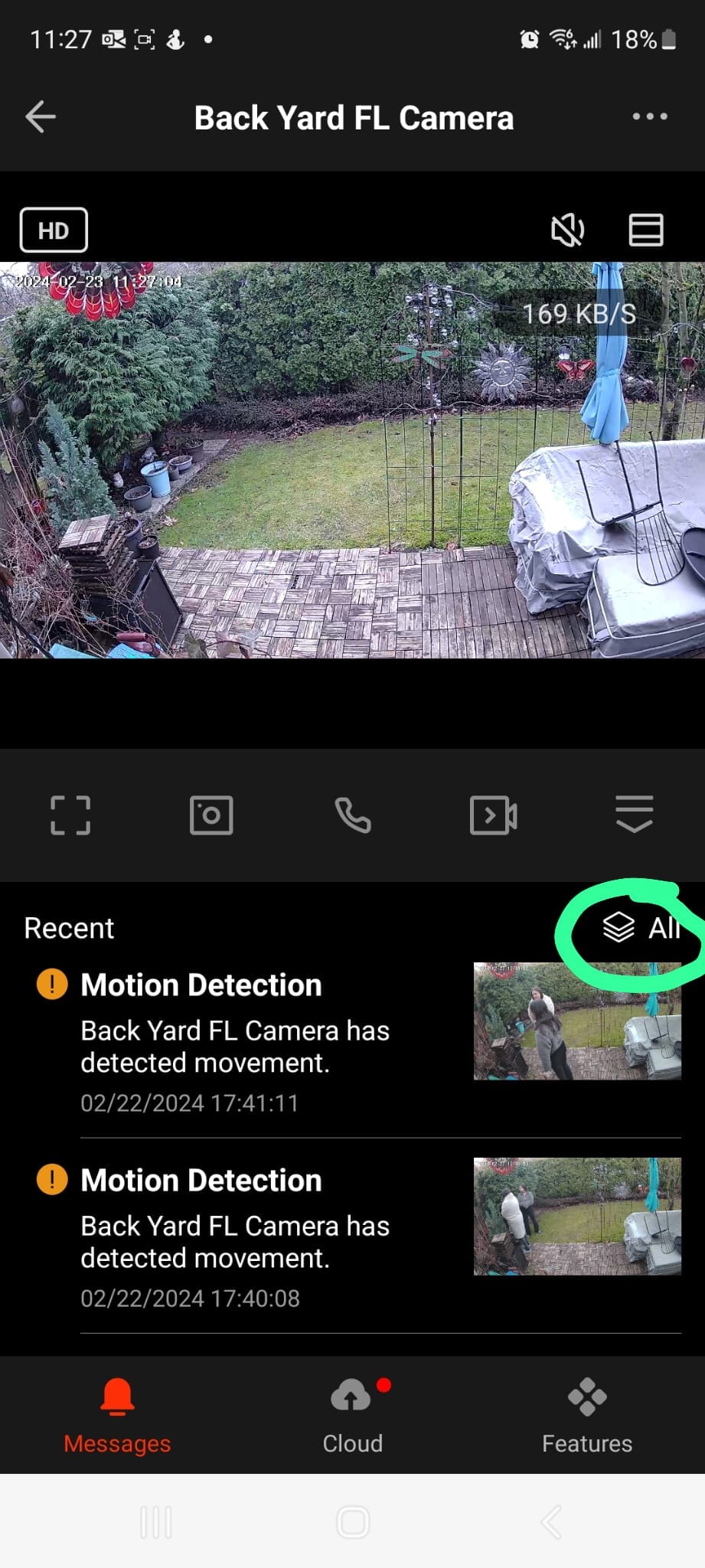
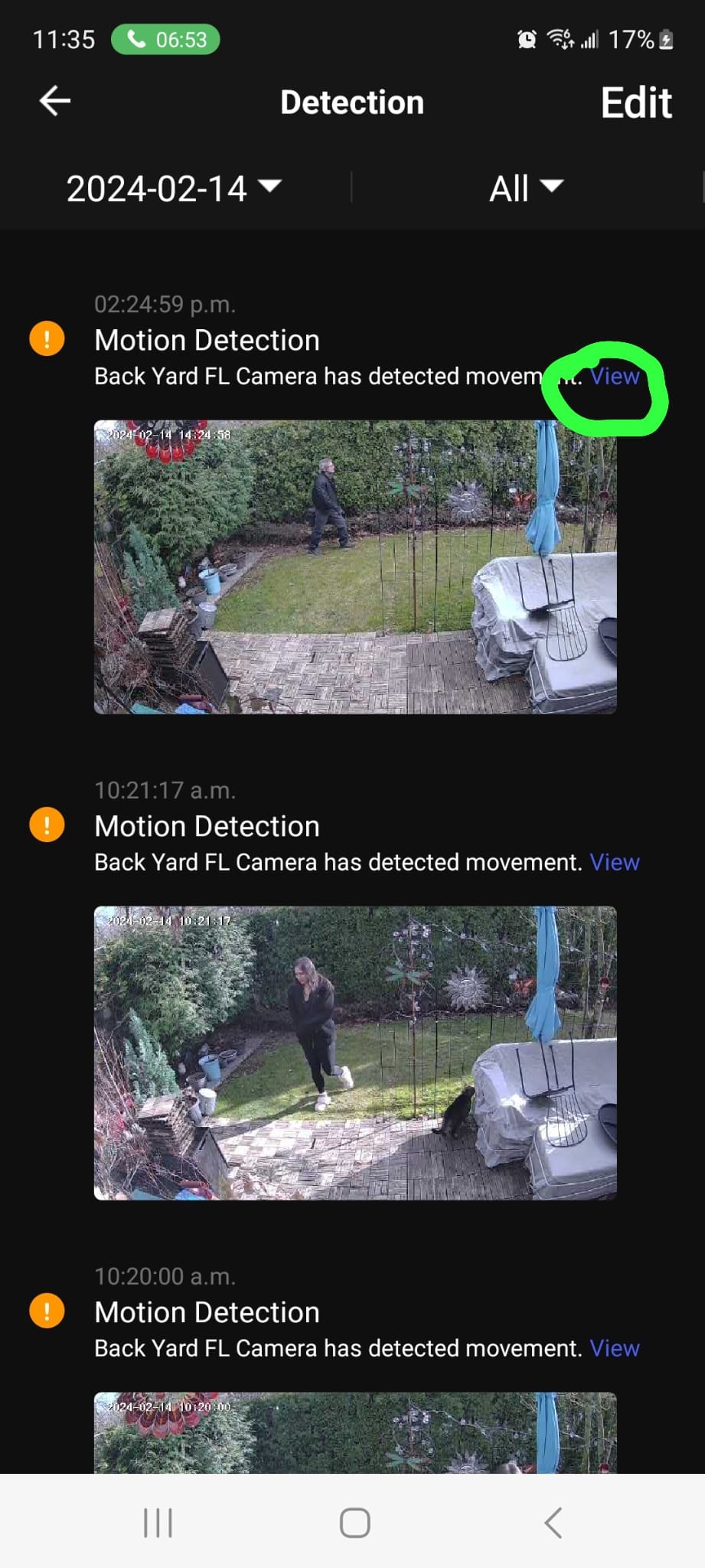
4. It will show you screen captures of any Detection for the Day or you can select 'Today' and then choose a date. You will see a list of Motion Detections. Select 'View' in blue and it will display the footage from that event.
Please read this article for solutions to solve your Floodlight offline issue.
https://osigodirect.kb.help/what-to-do-if-your-camera-shows-offline-on-the-smart-life-app/